
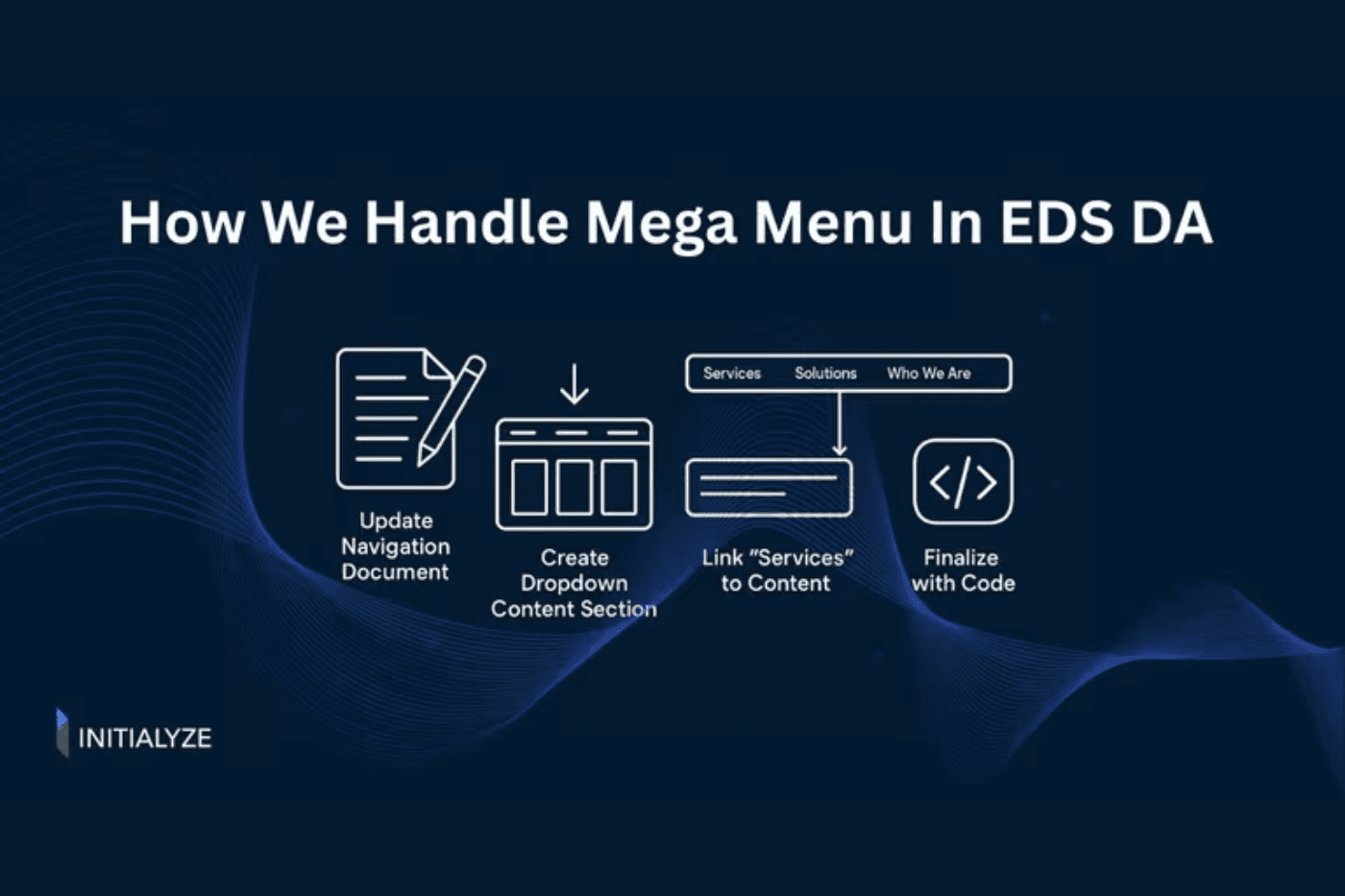
Navigation is one of the most critical components of any website. It serves as the roadmap that guides users through your content. And if navigation has a complex content hierarchy you want to make complex sites digestible. You might want to think about the Mega menu.
What Is a Mega Menu?
A Mega Menu is a type of expandable navigation menu that displays a large panel of options when a user hovers over or clicks a navigation item. Unlike traditional dropdown menus that show a simple vertical list, mega menus can display Multi-column layouts content organized into multiple columns for easier scanning, that can include images, icons, descriptions, and even promotional banners also it has grouped categories related links are grouped under headings or sections Common use cases are E-commerce sites – Showing product categories, sub-categories, and featured products, Enterprise websites – Displaying services, solutions, and resources & News/Media sites -- Organizing content by topics and sections
In this blog we will go through how you can create a megamenu in AEM Edge delivery Services (EDS) using a document authoring approach. At Initialyze, we use a clear, scalable approach to building these components so they remain intuitive, flexible, and easy to maintain.
Step 1: Create the Primary Nav
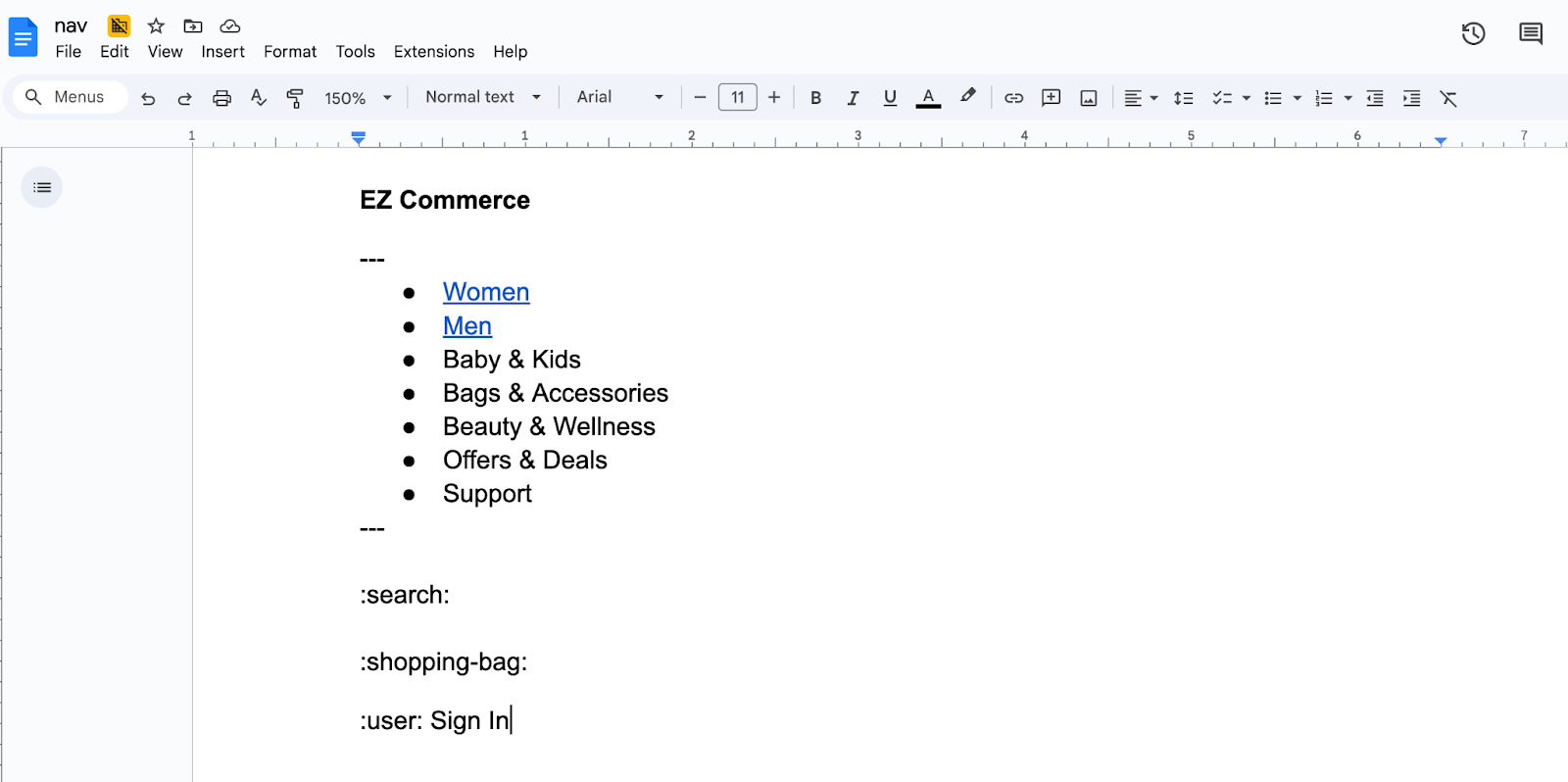
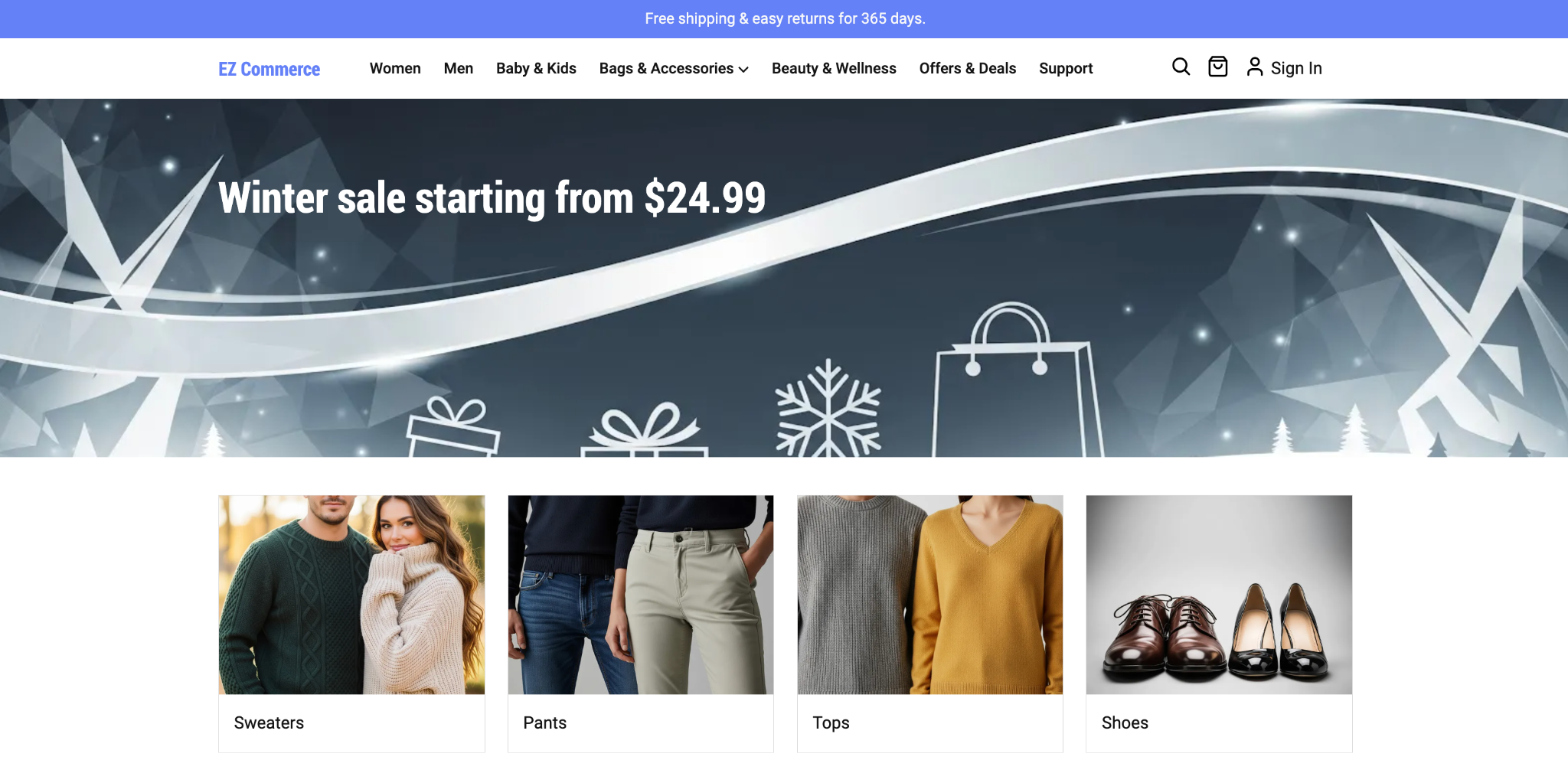
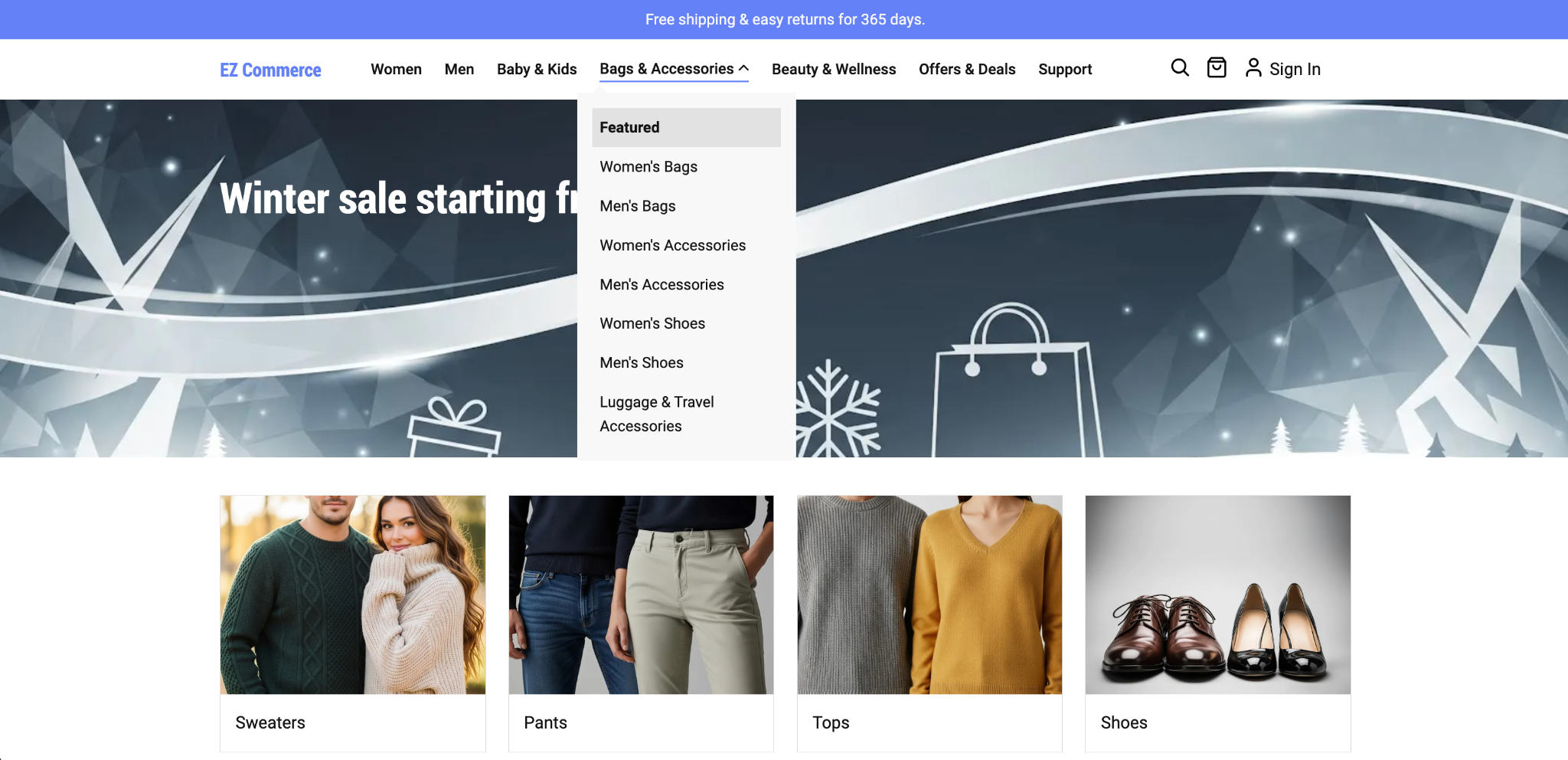
The first step is to create your primary navigation which will be visible upfront when page load includes brand logo, generic categories, nav tools like search, login and cart of your business We will be looking into ecommerce nav which will have generic categories like Women, Men, etc. In EDS, these can be created simply using an unordered list in the nav document. Each list item represents a top-level menu entry. This forms the foundation for linking deeper navigation layers.
Step 2: Build Secondary Nav (Mega menu content)
Once the main navigation is ready, we can create sub-navigation sections that connect to each menu item (for example, Women or Men).
1. Using the Columns Block (Single-Level Sub Navigation)
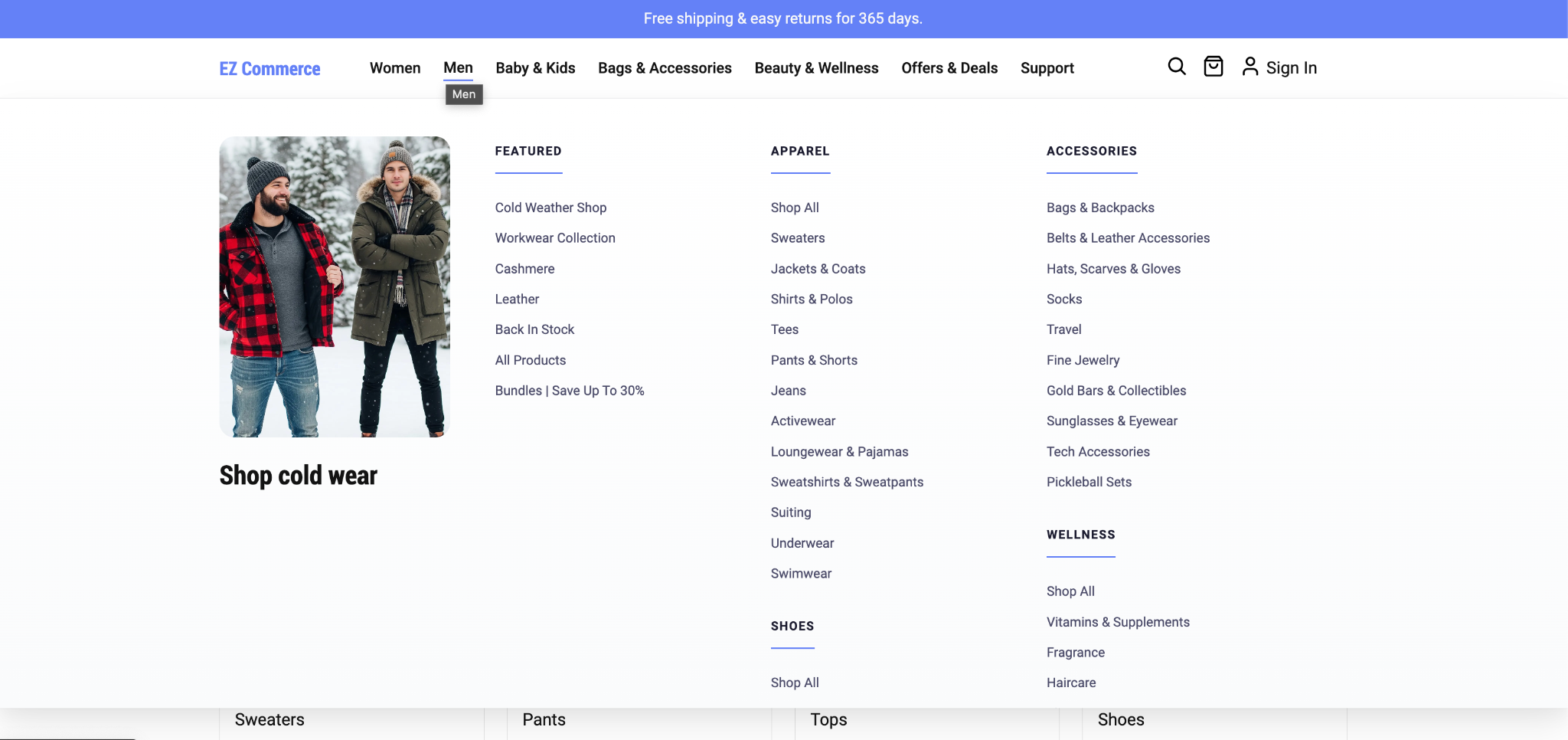
For simple, one-level nesting (like Womens categories), we can use the Columns block with light CSS customization.
Usage scenario:When you want to display multiple sub categories under the one category (like women, men).
Setup:- Block: Columns
- Layout: Four columns
- Class names: menu-item women
- Content:
- Title
- Unorder list with links
- Image with caption
Publish View:
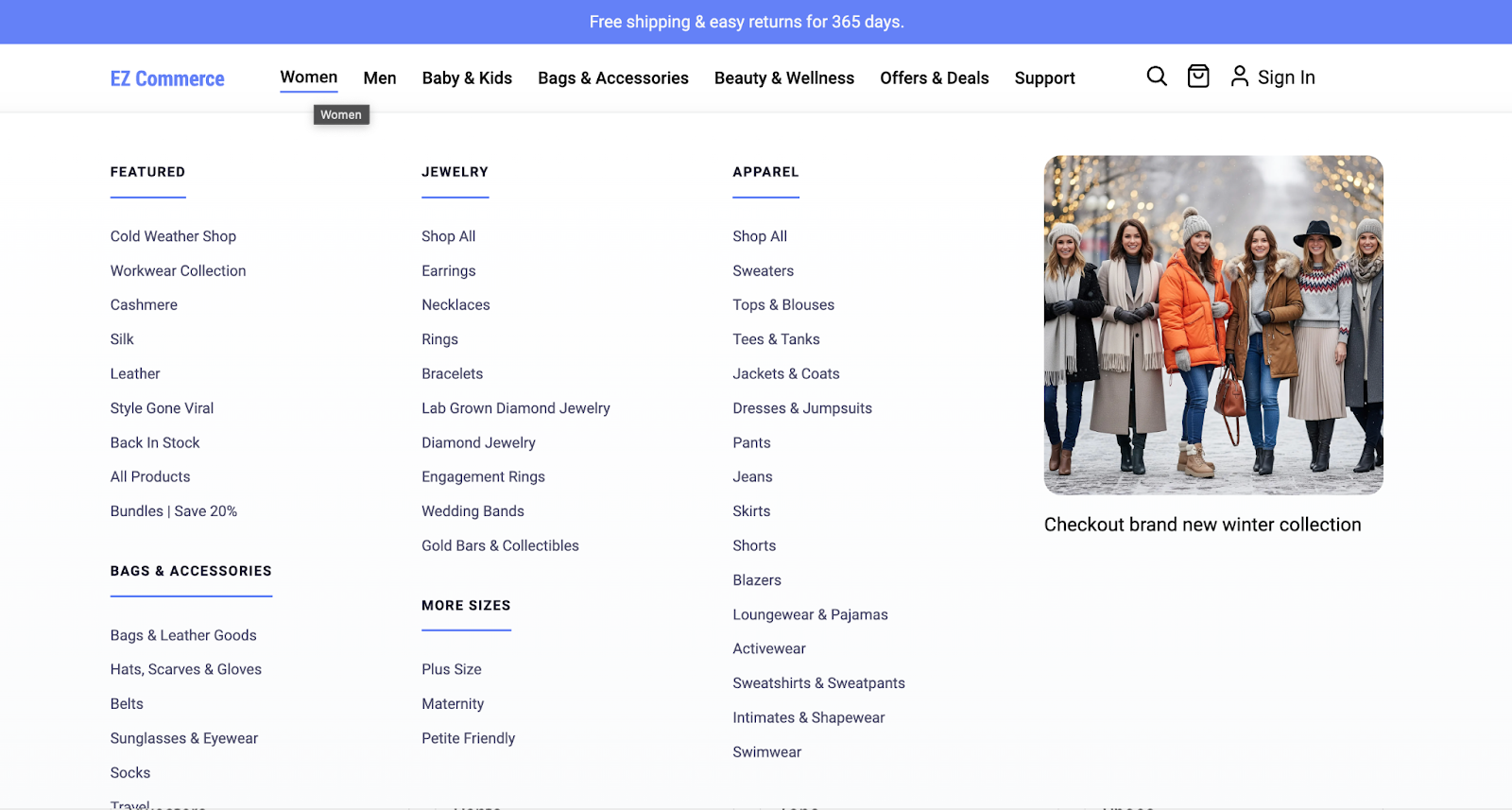
This structure keeps content clean and easy to scan while fitting perfectly into a mega menu layout.
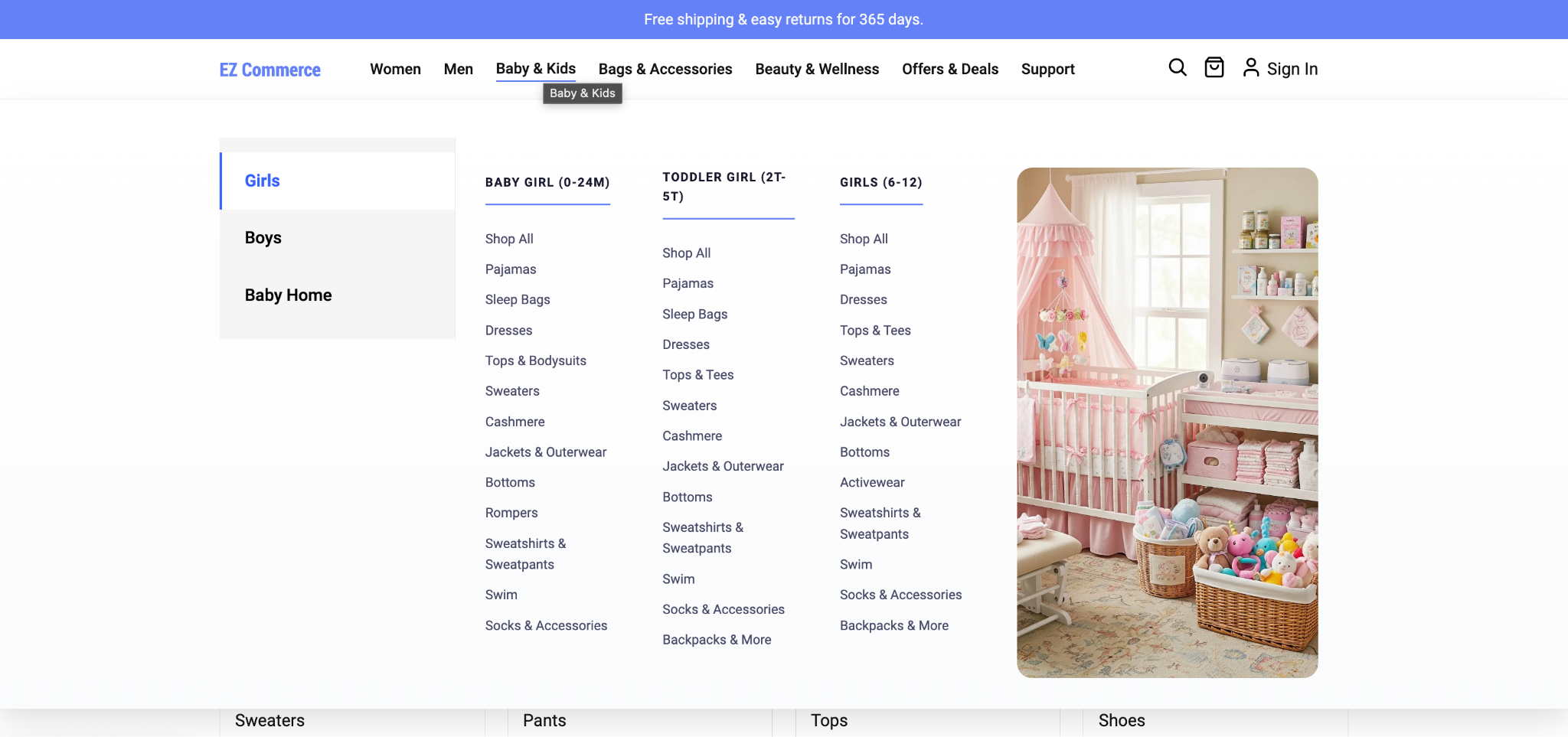
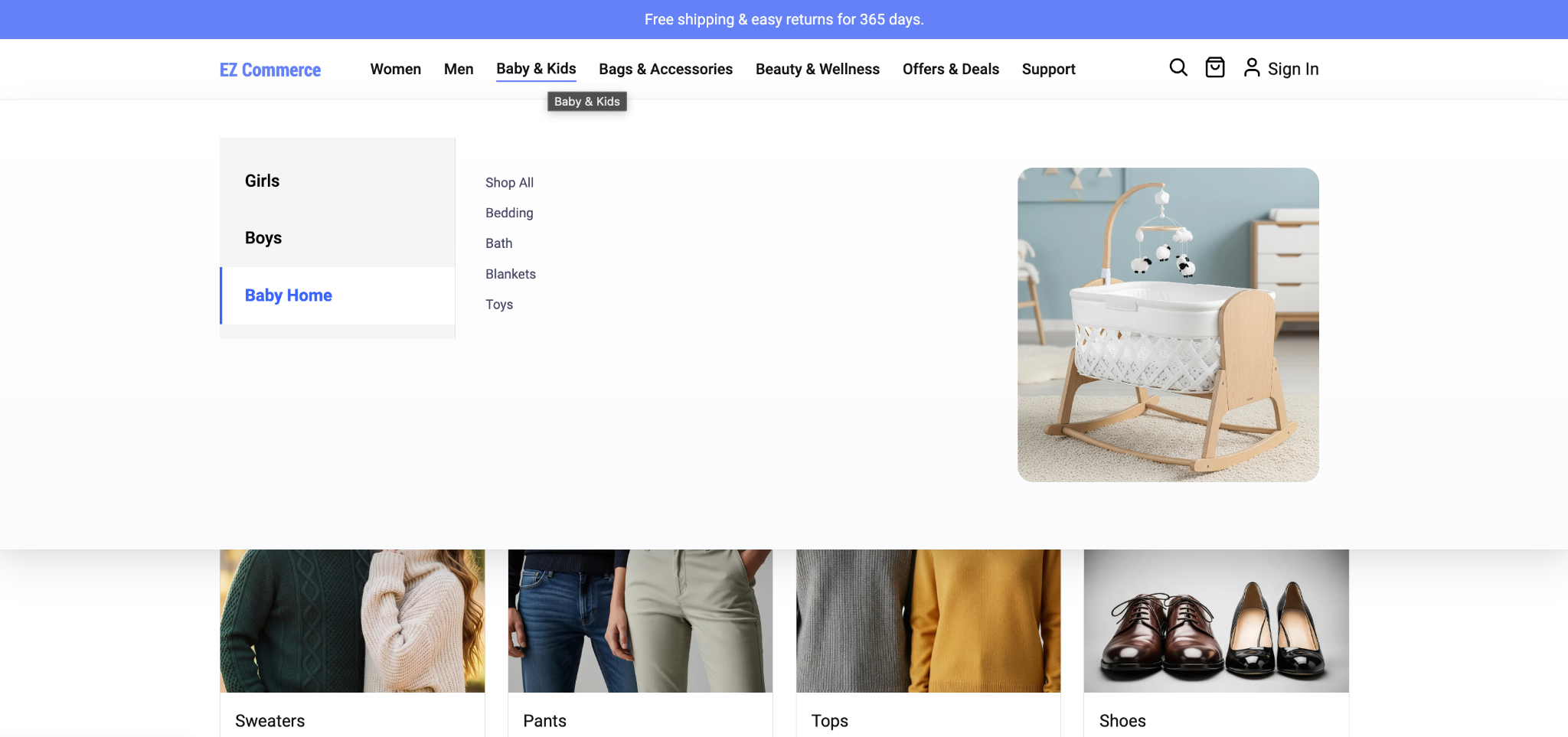
2. Using the Tabs Block (Multi-Level or Rich Content)
For more complex use cases—such as showcasing multiple solutions with visuals—we recommend using the blocks like Tabs, Cards, etc.
Step 3: Link Menu Items to Mega Menu Sections
To connect top-level navigation items with their respective mega menu sections:
- Add links to main navigation items
- Set their URLs to anchor values like:
- #women
These anchors map directly to the class names used in the Columns and Tabs blocks.
Step 4: Frontend Styling & Interaction
The remaining behavior—such as:
- Hover / click interactions
- Toggle logic
- Animations and layout styling
header.js→ interaction logicheader.css→ visual styling
This keeps content authors focused on structure while developers handle presentation and behavior.
Final Thoughts
With EDS DA, you don’t need heavy custom components to build powerful navigation. By leveraging native blocks like Columns and Tabs, you can create flexible, scalable mega menus that improve usability and content discovery.
Need Expert Help?
If you’re looking for AEM or Edge Delivery Services expertise—from navigation design to performance optimization—Initialyze can help you build high-impact digital experiences.
- Read more insights: initialyze.com/insights
- Start a conversation: initialyze.com/contact
Let’s build something impactful together.